

How to Check Google Indexing Issues on Your Website
The fastest way to check Google indexing issues is to use Google Search Console. Open the Page indexing report to see which pages are indexed and which are not. Then paste any single page address into the URL Inspection Tool to see its status. If the page is not on Google, Search Console usually gives a reason. For a quick check without any tools, type site: and then your page address into Google. If the page appears, Google has indexed it.
A page that is not indexed cannot show up in Google search results, no matter how well you wrote it. Many beginner bloggers, small business owners, and freelance SEO specialists hit this problem. You publish a page, wait a few days, and then cannot find it. The cause is often small. It might be a stray noindex tag, a blocked folder, or a page that Google has not reached yet. Some pages are also left out on purpose, and that is perfectly fine.
This guide shows you how to check if a page is indexed by Google and how to read the most common statuses in Search Console. You will also learn simple fixes for pages that are not indexed, and when it is better to wait than to act. You do not need coding skills. A free Search Console account and a few minutes are enough to follow along.
What Is Search Engine Indexing?
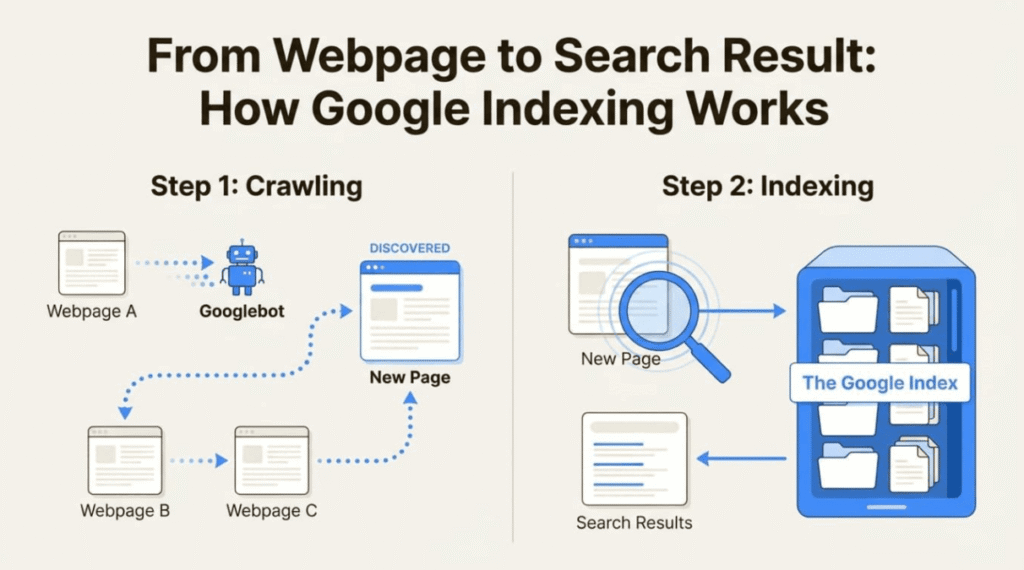
Search engine indexing is the step where Google adds a page to its database so it can show that page in search results. First, Google finds your page, usually by following a link or reading your XML sitemap. Next, Googlebot crawling begins, which means the bot visits the page and reads it. Last, Google decides whether the page is worth adding to its index. These steps are separate. A page can be crawled and still not be indexed, and that difference explains many of the statuses you will see later.
How to Check If a Page Is Indexed by Google
There are three easy ways to check. Start with the quick one if you just want a fast look. Move to Search Console when you need a clear answer and a reason. Each method shows a different level of detail, so many site owners use all three at different times.
Method 1: Use the site: Search Trick
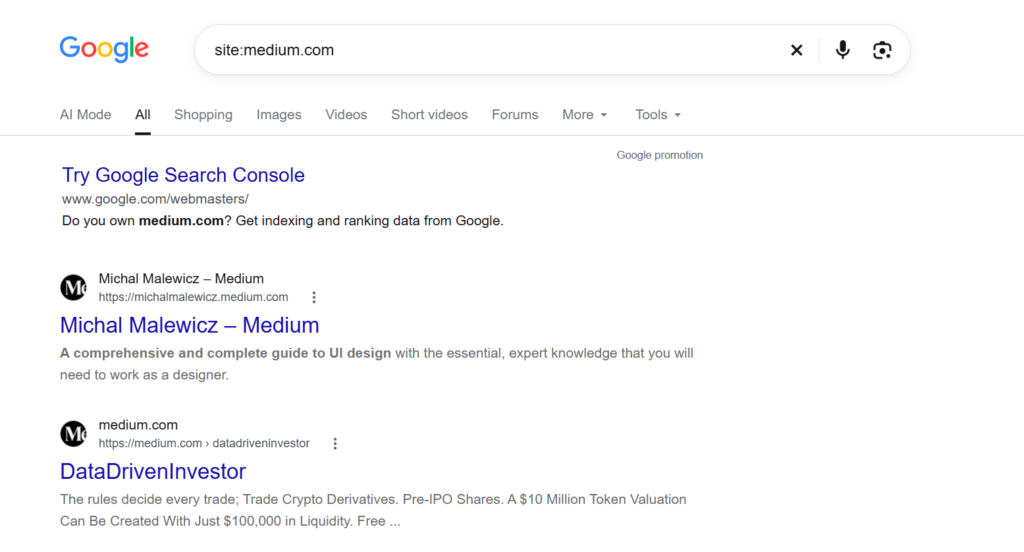
Type site:yourdomain.com/your-page/ into Google and press enter. If your page shows up, it is indexed. To see a rough count of indexed pages, type site:yourdomain.com on its own. This is the well-known Google index search trick, and it works like a simple Google index checker. Still, treat it as a guide and not a full report. It can miss pages, and it cannot tell you why a page is missing. Use Search Console when you need a reliable answer.
Method 2: Use the URL Inspection Tool
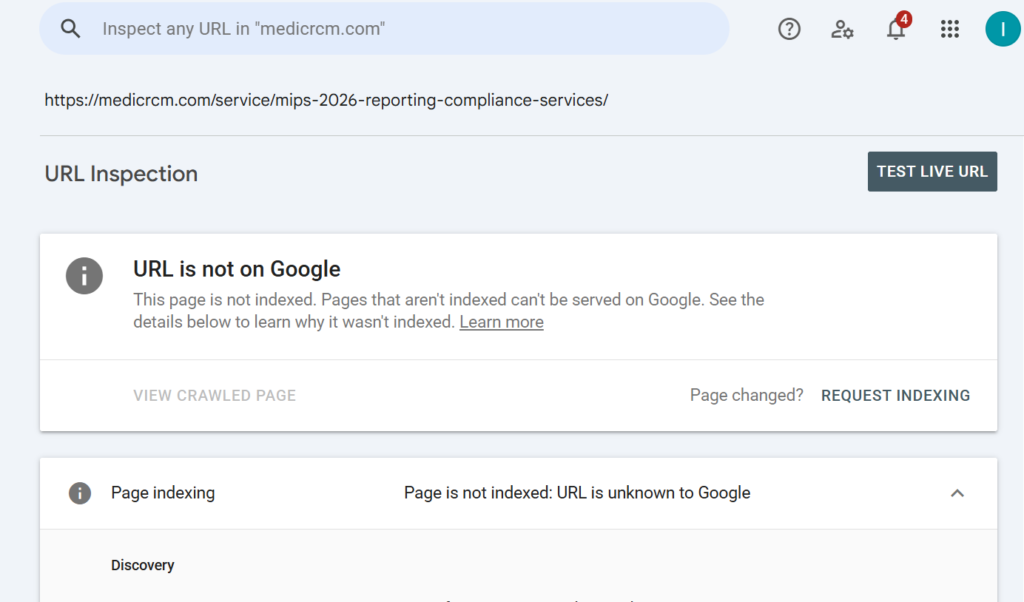
Open Google Search Console and paste the full page address into the search bar at the top. The result will say either that the URL is on Google or that it is not. If it is not, the report lists the reason, such as a noindex tag or a crawl problem. You can also run a live test to see how Googlebot views the page today. This is the best way to check indexing for a single page, especially right after you fix something.
Method 3: Use the Page Indexing Report
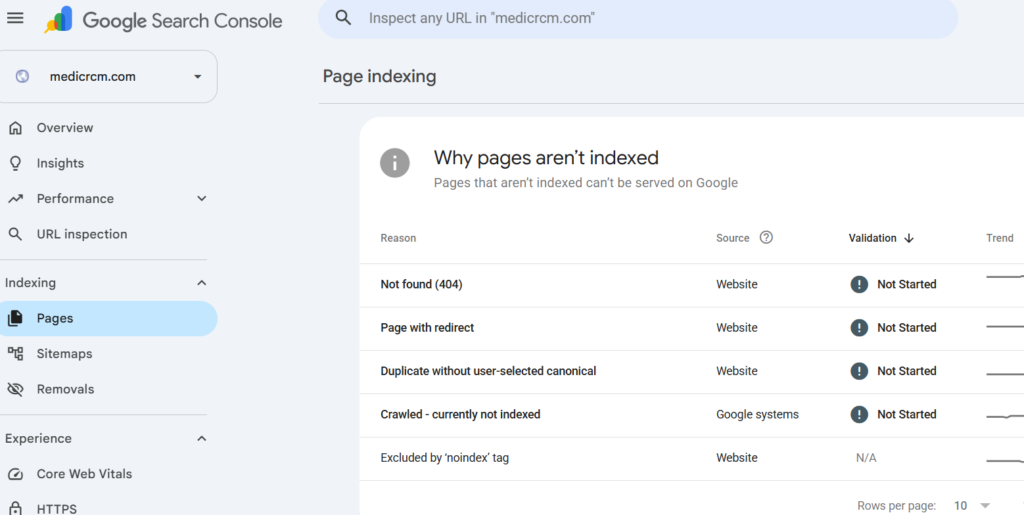
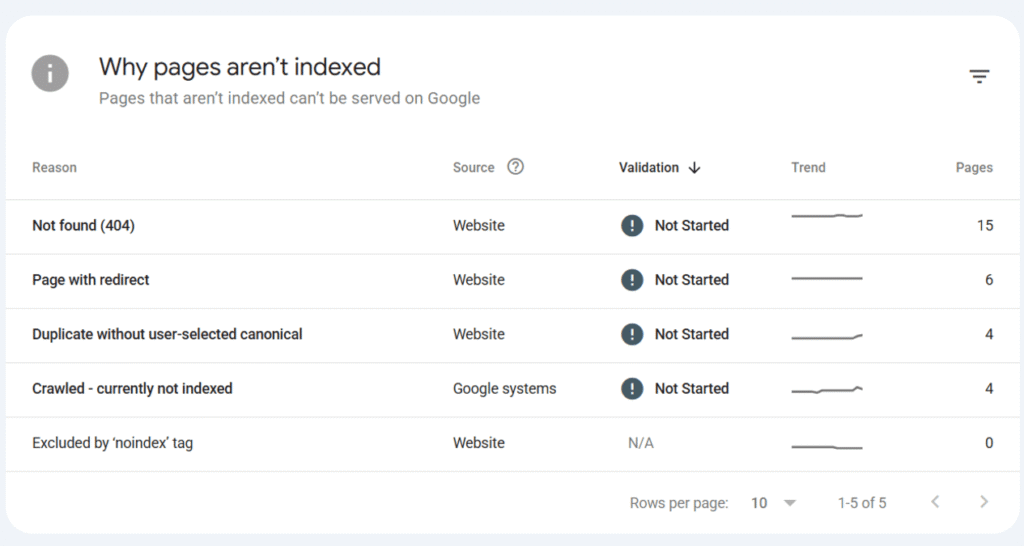
In Search Console, go to Indexing and then Pages. You will see a count of indexed and not indexed pages, plus a list called Why pages aren’t indexed. Click any reason to see example URLs. This is the closest thing to a free website indexing checker, and it covers your whole site at once. Do not worry if the not indexed number looks large. Many sites have pages that should stay out of Google, and the report counts those too.
If you want a full routine that goes beyond indexing, follow our SEO audit checklist. It covers crawling, site structure, speed, and content in a logical order. Tools such as Screaming Frog can also crawl your site and list noindex tags, redirects, and missing internal links in one place. Use this article when your main question is why a page is missing from Google, and use the checklist when you want to review the whole site.
What Do Common Google Indexing Errors Mean?
Search Console groups problems under short labels. The table below explains the ones beginners see most, along with a simple next step for each. Read the status first, because the fix depends on it. A status like Discovered is very different from one like Blocked by robots.txt, so treating them the same way wastes time.
Status in Search Console | What it means | What to do |
Crawled – currently not indexed | Google visited the page but did not add it. | Improve the content, add internal links, then wait. |
Discovered – currently not indexed | Google knows the URL but has not crawled it yet. | Add internal links and give it time. |
Excluded by ‘noindex’ tag | The page tells Google not to index it. | Remove the tag if the page should rank. |
Blocked by robots.txt | A robots.txt rule stops Google from crawling the page. | Edit the rule if the page should be public. |
Duplicate without user-selected canonical | Google sees a copy and chose its own main version. | Set a canonical URL or make the pages different. |
Soft 404 | The page looks empty or missing but loads normally. | Add real content or return a true 404. |
Not found (404) | The page does not exist at that address. | Restore it or add a 301 redirect. |
A few of these need extra care. The Crawled and Discovered statuses are not errors in the usual sense. They mean Google has not chosen to index the page yet, and the cause is often page quality, site strength, or timing. The noindex and robots.txt statuses are different. They are rules on your own site, so you can change them. Check that each rule is intentional before you remove it.
Should Every Page on Your Site Be Indexed?
No. Some pages are better left out of Google. Login pages, cart and account pages, admin areas, internal search results, and filtered or sorted versions of the same page usually do not need to be indexed. If Search Console lists one of these as excluded, your setup is often working as planned. Focus on the pages that matter, such as your main service pages, guides, and blog posts. Make a short list of those pages first, then check each one.
How to Fix Google Indexing Issues
Fix problems in order, from the quickest check to the slowest. Start with rules that block Google, because they are easy to spot and easy to change. Then move to site structure and content quality. After each fix, test the page again in the URL Inspection Tool so you know the change worked. Write down what you changed so you can undo it if something goes wrong.
Remove an Accidental Noindex Tag
Open the page, view the page source, and search for the word noindex. If you find it in a robots meta tag on a page that should rank, remove it. On WordPress, also check Settings, then Reading, for the option that discourages search engines from indexing the site. Your SEO plugin may have a per-page setting too. A noindex rule can also be sent in an HTTP header, which you will not see in the page source, so the URL Inspection Tool is a useful second check.
Check Your Robots.txt File
Visit yourdomain.com/robots.txt in your browser. Look for a line like Disallow: / or rules that block folders you want in search. Fix any rule that blocks pages you want Google to read. Keep in mind that robots.txt controls crawling, not indexing by itself. Google also cannot see a noindex tag on a page it is not allowed to visit, so blocking a page and tagging it noindex can backfire. Do not block CSS or JavaScript files that Google needs to display your pages.
Fix Your XML Sitemap and Canonical URL
Your XML sitemap should list only the pages you want indexed. Remove redirected, deleted, and noindex pages from it, then submit it in the Sitemaps section of Search Console. Next, check each page’s canonical URL, which names the preferred version of a page. If two addresses show the same content, such as the http and https versions, point both to one main address. If Google picks a different version than you wanted, compare both pages and make the content clearly different.
Improve Thin Content and Internal Linking
For Crawled – currently not indexed, look at the page with fresh eyes. Does it answer a real question better than the pages already ranking? Add original examples, clear steps, and details that only you can offer. Merge near-duplicate pages into one stronger page. Then add internal links from related pages, since a page with no links pointing to it is hard for Google to find. Google also mostly uses the mobile version of a page, so make sure your phone view shows the same text and links.
Fix Server Errors, Broken Pages, and Redirects
Pages that return 404 errors, server errors, or redirect loops cannot be indexed. If a page was deleted by mistake, restore it. If it moved, use a 301 redirect to the new address. Avoid long chains where one URL jumps through several others. For server errors, check with your host, because an unstable server can stop Googlebot from reaching your pages. After fixing the problem, test the live URL again to confirm it loads normally.
Ask Google to Check Again
Once a page is fixed, open it in the URL Inspection Tool and select Request indexing. Use this for your most important pages, not for every page on the site. If many pages share one issue, open that issue in the Page indexing report and select Validate fix. Google then rechecks the group. This can take days or weeks, and asking again and again does not make it faster. In the meantime, keep publishing useful pages and linking them well.
When Should You Wait Instead of Fix?
For a brand new page or site, give Google time. It can take days or longer to find and index new pages, and a new site with few links is often slower. Waiting makes sense when the page has no blocking rule, loads fine, and is linked from other pages. Act when a noindex tag, a robots.txt block, or an error is present, because those do not fix themselves. If your website is not indexed by Google after several weeks and you see no clear cause, improve the content and links.
FAQ
How do I check if my website is indexed by Google?
Search site:yourdomain.com in Google for a rough view, then confirm in Google Search Console. Use the Page indexing report for the whole site and the URL Inspection Tool for one page.
Why are my pages not indexed by Google?
Common reasons include noindex tags, robots.txt blocks, duplicate pages, thin content, broken links, and server errors. New pages may also just need time. The URL Inspection Tool shows the reason for each page.
How long does it take Google to index a page?
There is no fixed time. It can take a few days to a few weeks, and sometimes longer for new or small sites. A clean sitemap and strong internal links help Google find your page sooner.
Does Request indexing guarantee my page will be indexed?
No. It asks Google to look at the page again, but Google still decides. If the page has quality or technical problems, fix those first.
Is Crawled currently not indexed a penalty?
No. It is a status, not a penalty. It means Google visited the page but has not added it yet. Improve the content, add internal links, and give it time.
Conclusion
Checking for Google indexing issues takes only a few minutes once you know where to look. Start with the Page indexing report, read the reason for each excluded page, and fix the ones that matter. Most problems come down to a few causes: blocking rules, duplicate signals, weak pages, or poor links. If you want a wider review, work through the SEO audit checklist next. Once your key pages are indexed, you can also see how your brand shows up in AI answers with RankFable’s AI visibility checker.